

Module 5: Using DubBot for Web Quality and Accessibility

Module 5: Using DubBot for Web Quality and Accessibility
What You Will Learn in This Module
In Module 4, you learned how to work within Providence College’s WordPress editing environment, including how to find pages, make routine edits, and use the tools available to Web Editors. Module 5 builds on those skills by introducing DubBot, the College’s web quality assurance and accessibility monitoring tool.
Publishing or updating a page is not the end of a Web Editor’s responsibility. Websites change over time: links break, content becomes outdated, accessibility problems can be introduced, and documents may contain issues that are difficult to identify through visual review alone. Regular quality assurance helps identify these problems so they can be corrected.
Providence College uses DubBot to help Web Editors monitor the accessibility and overall quality of their assigned websites. DubBot regularly scans web pages and documents, identifies potential problems, and provides reports that Web Editors can use to investigate and address those issues.
All Providence College Web Editors are required to complete DubBot training and to use DubBot regularly as part of maintaining their assigned content.
By the end of this module, you should be able to:
- Explain the role DubBot plays in Providence College’s web quality and accessibility program.
- Understand the DubBot training and certification requirements for new Web Editors.
- Understand the annual DubBot recertification requirements for current Web Editors.
- Access and complete the required training in the DubBot Learning Center.
- Download and submit your DubBot training certificates.
- Understand how DubBot reports are used to identify accessibility and quality-assurance issues.
- Recognize your responsibility for regularly reviewing and addressing issues identified on your assigned pages.
- Use DubBot tasks to request assistance from Web Services when you need help resolving an issue.
WordPress gives you the tools to maintain your web content. DubBot helps you identify problems that may need your attention and ensure that the content you maintain continues to meet Providence College’s standards for accessibility and web quality.
Module 5 Content
Department of Web Design/Development, Architecture, & Services
Martin Hall Room 302
401.865.1755
web@providence.edu
Module 5 is about ongoing quality assurance. All Providence College Web Editors are required to complete DubBot training, to recertify annually as part of web editor certification, and to use DubBot regularly.
Undergraduate Students are not required to take DubBot training, and will not have access to DubBot dashboards or DubBot reports. They may skip this module.
5A. New Web Editors
To unlock access to DubBot reports,Web Editors must:
- Complete the DubBot Learning Center training,
- Submit four completion certificates to Web Services
(more information on these topics below)
DubBot certificates must be submitted only once, after you complete your initial DubBot training via the links on the Web Editor Certification test. We will review the information you submit, provide you with any tips or pointers, create your DubBot account, and you will get a notification when your DubBot account is created and activated.
DubBot content is included in the annual Web Editor Recertification test, so you’re welcome to repeat this training at any time, but you will not have to resubmit certificates each year — that is a one-time process.
5B. All Web Editors
Once your DubBot access has been activated, you will receive weekly reports via email regarding your site’s quality, and you will be able to log into the DubBot system to track, assign, or address any issues that come up with your website. In addition, Web Services may assign tasks to you within DubBot.
All editors will be expected to refresh their DubBot access once a year, beginning in Fall 2026. You will not need to complete the full DubBot Learning Center training again, however you will need to complete the annual Web Services Recertification Test. (You are welcome to complete or refer to the training any time.)
5C. Getting Help with DubBot
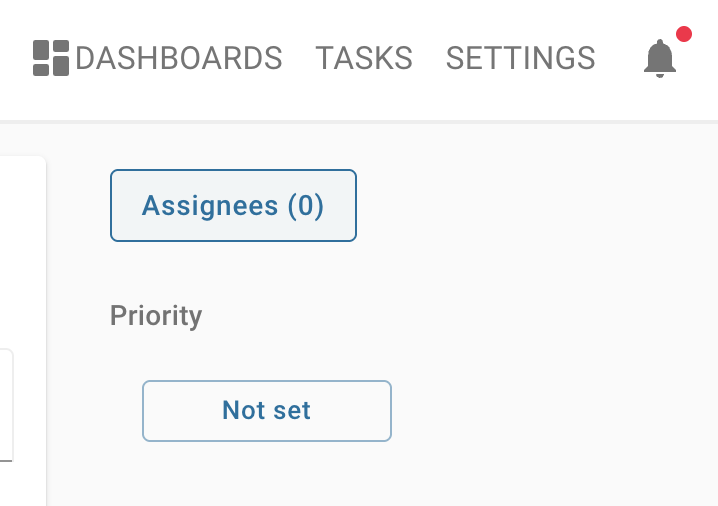
If you ever need assistance with DubBot (either how to use it, or how to solve issues flagged by DubBot), you can get support by creating a task within DubBot and assigning the task to a member of Web Services. This will send a notification to Web Services staff, who will respond within DubBot. Keeping communication within DubBot helps you and Web Services address issues in context, which makes it easier for everyone!
5D. Using the DubBot Learning Center to Complete your Training
Complete your Web Editor training in the DubBot Learning Center, which is hosted on a platform called Thinkific (it’s not on providence.dubbot.com). When you visit the Learning Center, you will be asked to create a new account, or log into an existing account if you’ve already created an account on Thinkific.
DubBot training is provided by Thinkific.
- It is not on https://www.providence.edu
- It is not on https://providence.dubbot.com
You will need to register an account with DubBot’s partner, Thinkific, to complete the DubBot training.


- You will see FOUR courses listed:
- Introduction to DubBot
- Dipping into Accessibility
- Diving into Accessibility
- Manual Accessibility Testing
- Select the first course to start.
- Use the “Enroll” button in the main banner to begin the course.
- Create a new account on the registration page (or log into your existing Thinkific account). Do not use your PC password to register or log into this account! Make up a password that you will remember. This service is not affiliated directly with PC, and you should not share your PC password with third parties.
- Complete all four courses.
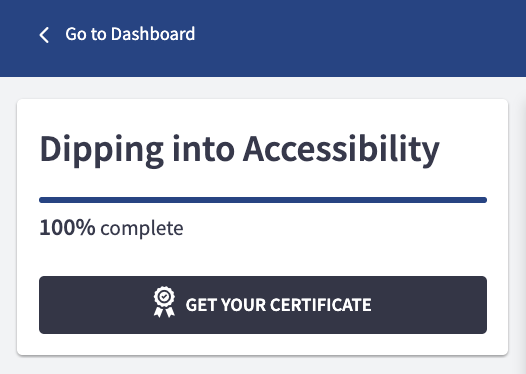
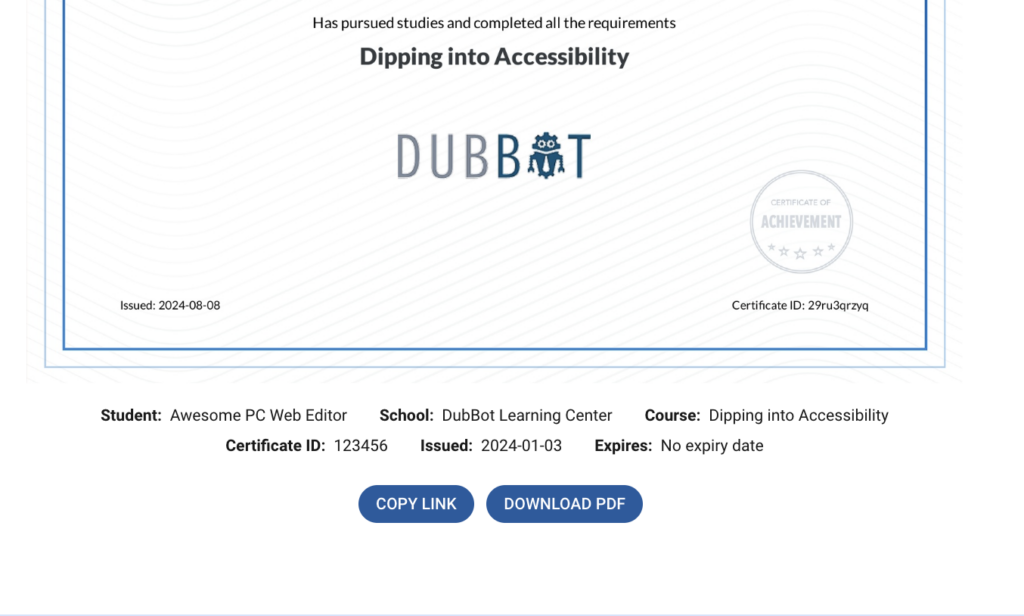
- When you complete the Learning Center training, download the PDF of each of your four Certificates (found at the top left within each Topic, see below for examples).
- When you take the Web Editor Certification test, you will upload your certificates (see below).
5E. How to Get and Submit Your Certificates
5F. Key Takeaway
Web quality and accessibility require ongoing attention. A page that is accessible and working correctly today will not necessarily remain that way as content, links, documents, and websites change.
DubBot helps you identify accessibility issues, broken links, and other quality problems across the content you maintain. As a Web Editor, you are expected to review DubBot reports regularly and address the issues you are able to correct.
You are not expected to solve every problem on your own. If you do not understand an issue identified by DubBot, are unsure how to fix it, or believe the problem requires a technical change, create a DubBot task and assign it to Web Services for assistance. Regular DubBot use turns accessibility and quality assurance from a one-time check into an ongoing part of maintaining Providence College’s web presence.
If you have any questions about this information, please don’t hesitate to file a Web Services ticket online (different than a DubBot task!), which will instantly assign your query to Web Services staff, and we will get back to you as soon as possible.
FINAL STEPS
For New Web Editors
- Complete the DubBot Training and get your Certificates
- Download your DubBot Certificates
- Take the Web Editor Certification Test and Upload your DubBot Certificates
For Recertifying Web Editors
FINAL STEPS
For New Web Editors
1.Complete the DubBot Training and get your Certificates
2. Download your DubBot Certificates
3. Take the Web Editor Certification Test and Upload your DubBot Certificates
For Recertifying Web Editors
1. Take the Web Editor re/Certification Test