

Module 4: WordPress Basics

Module 4: WordPress Basics
Getting oriented in Providence College’s WordPress editing environment.
Providence College uses WordPress for most of the College’s externally facing websites. This module introduces the basic WordPress tools and screens that Web Editors use to maintain assigned content. The goal of this module is not to make you an advanced WordPress user. The goal is to help you understand how to access WordPress, find the pages and tools you need, make basic edits safely, and recognize when a change should be reviewed with Web Services.
By the end of this module, Web Editors should be able to:
- Explain how Providence College Web Editors access WordPress after certification and approval.
- Identify the main areas of the WordPress dashboard used by Web Editors.
- Find existing pages using the Pages area.
- Recognize the basic WordPress editing interface.
- Understand the difference between routine editing and changes that affect site structure.
- Locate common tools such as Pages, Media, Contacts, and Menus.
- Understand why major navigation, layout, or structure changes should be discussed with Web Services.
- Know where to go next for help or advanced training.
Module 4 Content
4A. Before You Begin Editing
Before editing a Providence College WordPress site, remember that you are working in a live, public-facing environment. Content added to a public website may be visible to audiences outside the College, including prospective students, families, alumni, search engines, AI, and the general public.
Web Editors should:
- Use a modern browser such as Chrome, Firefox, or Microsoft Edge when editing.
- Avoid uploading sensitive, private, financial, health, or student information.
- Use only images and other materials that the College has explicit permission to use.
- Ask Web Services before uploading documents, embedding tools, or publishing content that may involve privacy, security, accessibility, or policy concerns.
4B. Accessing WordPress
Once you have completed the required training, passed the certification test, and been granted editing access, you will log into WordPress through the admin area for the site you edit.
Most Providence College WordPress sites use this format:
https://sitename.providence.edu/wp-admin/
For example, if you edit the Web Services site, the WordPress login address would be:
https://web-services.providence.edu/wp-admin/
Providence College WordPress uses Single Sign-On. If you are already signed into another College system, such as email or the portal, you may be taken directly to the WordPress dashboard or to a landing page with a link to the dashboards you have access to. If you are not already signed in, you may be prompted to use your Providence College network credentials.
4C. Getting Oriented in the WordPress Dashboard
The WordPress Dashboard
The WordPress dashboard is the main administrative area for your site. From the dashboard, you can find your pages, media files, contacts, posts, and other tools available to your editing role.
When you log in, check for Web Editor news or announcements. Web Services uses this area to share information about changes, planned service outages, new tools, updated guidance, or other items that affect Web Editors.
Providence College’s WordPress environment is customized. Generic WordPress help resources – the “big W” in the top left corner of the dashboard may be useful for understanding broad concepts of generic WordPress, but they will not match the tools, blocks, permissions, templates, or workflows used on Providence College websites. It is not a valid replacement for learning about Providence College’s customized WordPress environment. Instead, use these training pages/videos and the Blockumentation and Style Guide pages.
Video Content
For the following subsections about WordPress, please watch each video in its entirety. Each video contains valuable information about editing websites using WordPress and will contain information that is used in the Web Editor Certification test.
The WordPress Admin Bar & Dashboard
4D. Where Things Live in WordPress
| Dashboard Area | What It Is Used For | Guidance for Web Editors |
|---|---|---|
| Dashboard | Returns you to the main WordPress admin screen | Use this as your starting point. |
| Pages | Stores standard, persistent website pages | Most Web Editors will use this option frequently. |
| Posts | Stores news, timely or blog-style content where used | Use only if your site uses posts. |
| Media | Stores images and sometimes PDFs | Use carefully. Uploaded files are public. |
| Contacts | Stores reusable contact information about faculty, staff, and offices. | Use the approved Contacts workflow when your site uses contacts. |
| Appearance | Contains menu controls | Use carefully. Navigation changes will affect the whole site. Contact Web Services. |
| Comments | Used to review or moderate comments if enabled | Comments are turned off by default across Providence College sites. |
| TablePress | Used to create and manage web-based tables | Use only where supported and appropriate. |
| Galleries | Used to create simple image galleries | Use only when images are appropriate and properly prepared. |
4E. Finding and Opening Pages
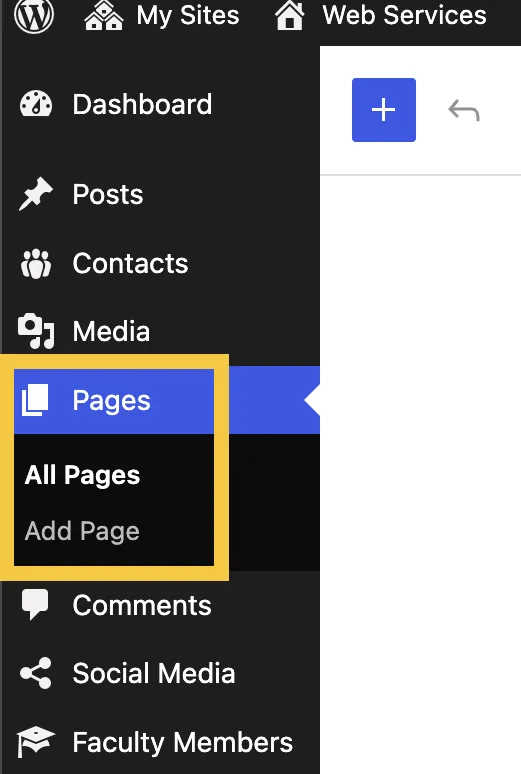
Most routine editing begins in the Pages area. This is where you can find existing pages, search for content, and open pages for editing.
Before creating a new page, search carefully to see whether the content already exists. Many Providence College sites contain pages that may be older, unpublished, or redirected. Creating duplicate pages can confuse users, search engines, and future editors.
- The WordPress Pages Menu
- How to search for a page
- How to identify the correct page
- What the Trash area means
- What Quick Edit is used for
The WordPress Pages Menu
The Quick Edit Menu
4F. Understanding the Editing Interface
When you open a page for editing, WordPress displays the editing interface. Providence College WordPress uses blocks to organize page content. A block may contain text, headings, images, buttons, columns, or other supported content elements.
Creating New/Editing Existing Pages and the WordPress Page Editor Overview
Page Basics – Parent/Child Relationships, Slugs, Page/Block settings
4G. Creating New Pages
Some Web Editors may need to create new pages, but new pages should be created thoughtfully. Before creating a page, consider whether the content already exists, whether the information belongs on the public website, and whether the new page affects site navigation or structure.
Create a new page only when:
- The content does not already exist elsewhere.
- The content belongs on the public website.
- The department or office responsible for the site has approved the content.
- The page can be maintained over time.
- The new page does not require major navigation, site structural changes or Web Services review.
4H. Basic Blocks Web Editors Should Recognize
WordPress pages are built with blocks. Some blocks are simple and common. Others are more specialized and may be customized for Providence College websites. Additional information regarding blocks and PC Custom Blocks is available on the Blockumentation page.
Common blocks Web Editors may encounter include:
- Paragraph: Used for standard body text.
- Lists: For creating bulleted and numbered lists of items.
- Heading: Used to structure content.
- PC Custom Button: Used for prominent calls to action.
- Columns: Used to arrange content in multiple columns.
- Image: Used to display images.
- Wrappers: Used to provide structure on a page.
- Custom/Advanced Providence College blocks: Used for supported layouts and content features.
How to add blocks to a page
4I. Images, the Media Library and PDFs in WordPress
Optimizing images for the Web and Inserting them into WordPress
If you need to have Adobe Photoshop installed, please fill out the Service Desk request form.
The Media Library, Uploading Images and PDFs
4J. Managing Contacts
Providence College sites use a shared Contacts system to manage reusable contact information about people and offices. If your site uses Contacts, update the contact entry rather than manually recreating the same information in multiple places.
Using the Contacts system helps keep contact information consistent and easier to maintain.
Creating and Editing Site Contacts
Linking to Faculty Profiles
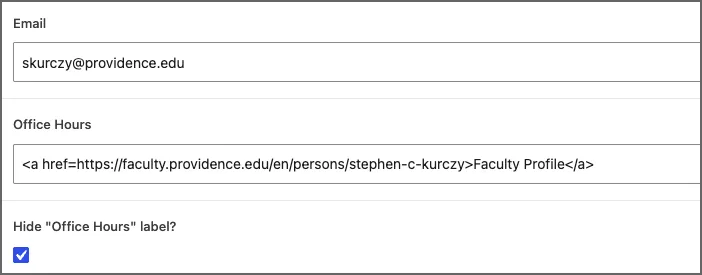
Faculty contacts are similar to regular contacts, however the office hours field should be hidden and replaced with an HTML link that points to their faculty profile on faculty.providence.edu.
- Create their contact information
- Search for the faculty member’s profile
- Insert the link to their profile, enclosed in the appropriate html tags shown in the Office Hours field below
- Save the contact
4K. Understanding Site Navigation
Navigation helps users understand where they are, what content is available, and where they can go next. The key to good navigation is consistency- the consistent use across each individual site and Providence College as a whole.
Web Editors should understand the basic structure of Providence College websites, and that navigation changes will affect an entire site. Site navigation must be maintained consistently across our sites so that users can easily navigate between our sites to get to the information they are looking for in a consistent manner.
Routine content updates usually do not require navigation changes. If you believe a page should be moved, renamed in navigation, removed from navigation, or added to a menu, contact Web Services for review and they will assist with the navigation change.
4L. Key Takeaways
- Images should be optimized for the web, uploaded in .webp format
- PDF content should be turned into web pages. If a PDF MUST be used, it MUST be accessible.
- Different content components are called “blocks” and used together, can create creative layouts
- Adding and modifying contacts is a multi-step process. Adding faculty members to link to their profiles is a different process.
- Contact Web Services regarding all navigation changes and they will assist you