
The WordPress Gallery Block – now available!
Great news! The WordPress Gallery Block is now available for Web Editors to use. This flexible block is the perfect solution when you have more than a handful of images that you would like to display on a single page. Great for event and gathering images.
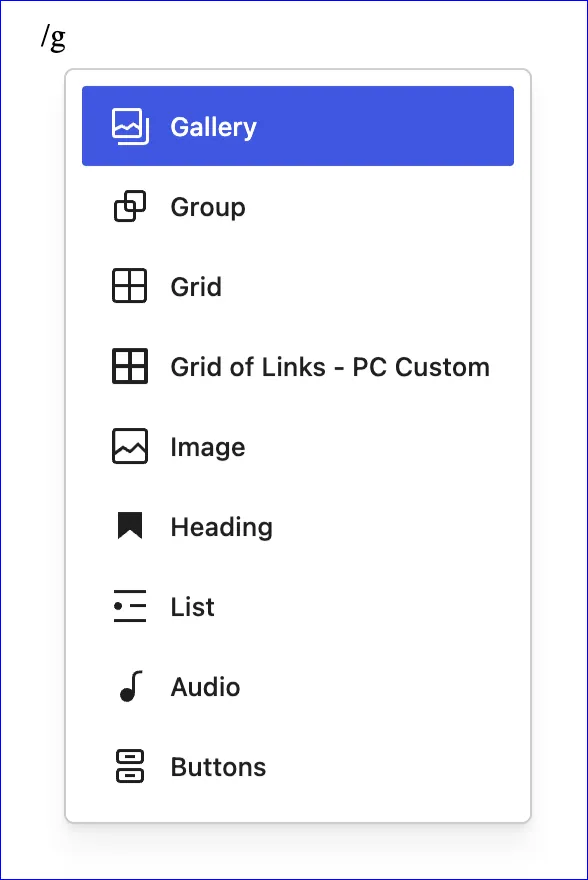
1. Position your cursor where you want the block to go and then insert it using either the block inserter (the blue square with the white plus at the top left of your editing page) or type / and type g to find the gallery block.
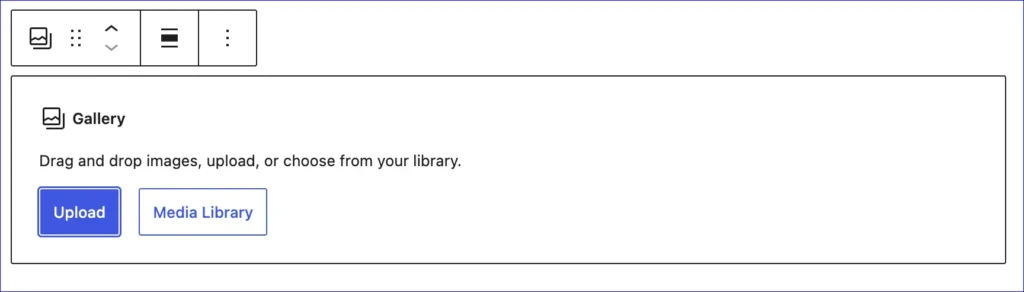
2. You will be prompted to insert images in your gallery- you can either drag/drop them on to the prompt, upload them, or pick from the ones already uploaded and in your media library.
3. You can add as many images as you’d like, just be wary of adding too many- which makes for a very long page. Consider breaking up a large gallery into multiple galleries across multiple pages.
4. Below is an example gallery created from images within the Web Services site. Images in a gallery support captions, which are displayed as white text over a black gradient background.