

PDF Accessibility
At Providence College, we recognize that it is vital to ensure that all of our web content is accessible to people using assistive technologies. We use DubBot to scan all web pages weekly, including all the PDFs linked on your site, and reports are sent to each web editor. Accessibility for PDFs is a bit more complex than for web pages, though, and requires more attention.
The official policy of Web Services is that we discourage the use of PDFs on our site. Most content that is published in PDF form lends itself well to being a web page, and should be a web page, not a PDF.
However, we recognize that sometimes, PDFs make the most sense for communication. But just as web pages do, PDFs require accessibility checking. You are responsible for making sure that any PDFs you upload to our website are accessible. The resources below can help you do that.
Uploading PDFs
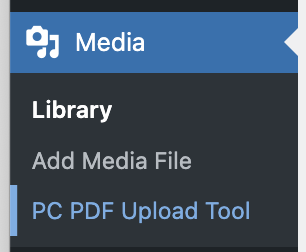
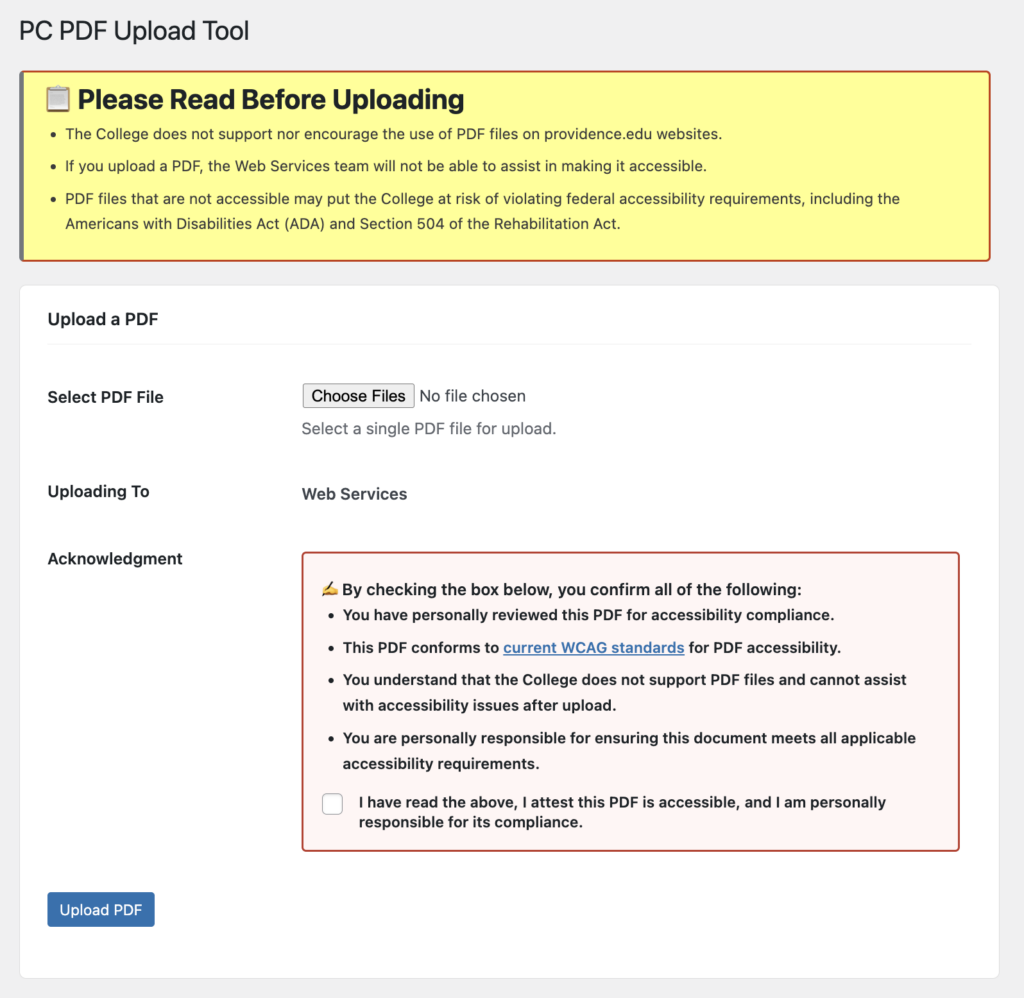
As of April 2026, if you must upload a PDF to our WordPress site, you will have to attest that you have personally checked the PDF for accessibility. PDFs cannot be uploaded directly to the Media Library, but instead must be uploaded through the PDF Upload tool.
The tool requires you to attest to the accessibility of the PDF, and maintains a record of when a PDF was uploaded, which user uploaded it, and the status of the attestation. We hope that this change helps to build awareness and accountability to ensure we’re always compliant with accessibility regulations and best practices.
Read it
As of 10 December 2025, DubBot scans not only your web pages, but your linked PDFs for accessibility. Take some time to read up on PDF accessibility, from our partners at DubBot:
- PDF Accessibility: The Basics
- Well-Tagged PDFs and What You Need to Know About Them
- An Accessible Interactive PDF Form
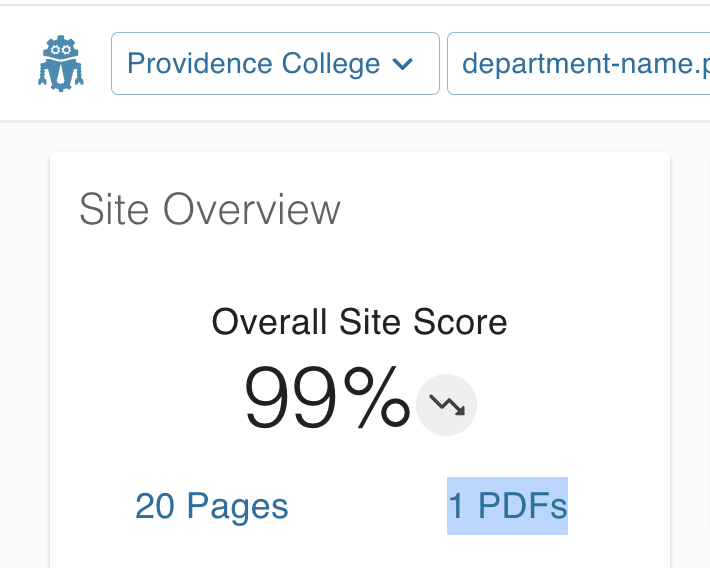
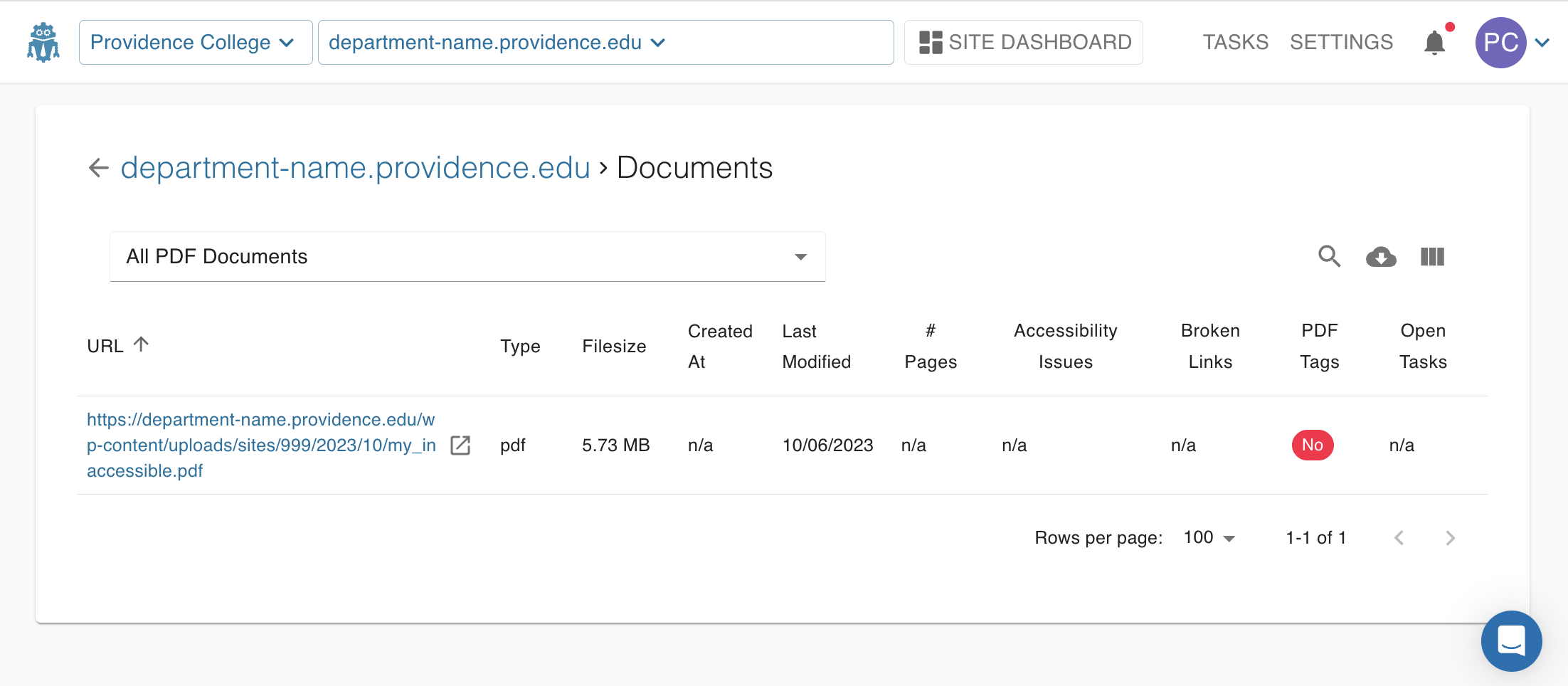
Within DubBot, you can find the link to your site’s PDFs directly below your Overall Site Score. You will see a list of all PDFs. If the document is untagged or inaccessible, those issues will be flagged in the Documents list.
Watch it
Everything you need to know to remediate a PDF, or create an accessible PDF to federal government accessibility standards can be found at Section508.gov’s subsite How to Test and Remediate PDFs for Accessibility Using Adobe Acrobat DC. If you do not have access to Adobe Acrobat, reach out to the Help Desk for assistance.
Do it
Are you ready to create your first accessible PDF? Providence College provides the tool Sensus Access to do basic automated PDF accessibility remediation. You upload the PDF to Sensus Access, and within minutes, a remediated version of your PDF is emailed back to you. IMPORTANT: You still must check the PDF to ensure that it is accessible. We recommend using Adobe Acrobat to do that, using the tools mentioned above.
When you receive your remediated PDF, you must do a final review!
- Open it in Adobe Acrobat
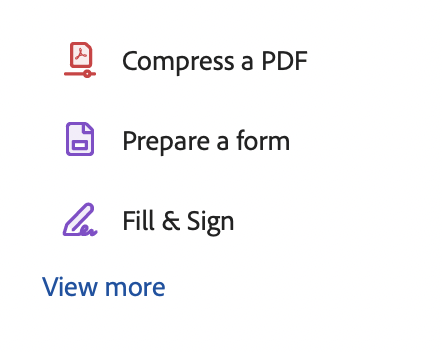
- From the left sidebar, choose:
- View more
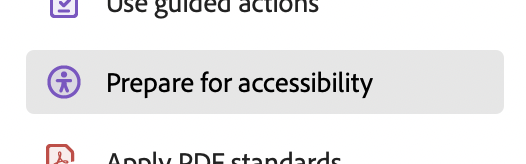
- Prepare for Accessibility
- Check for Accessibility
1.
2.
3.
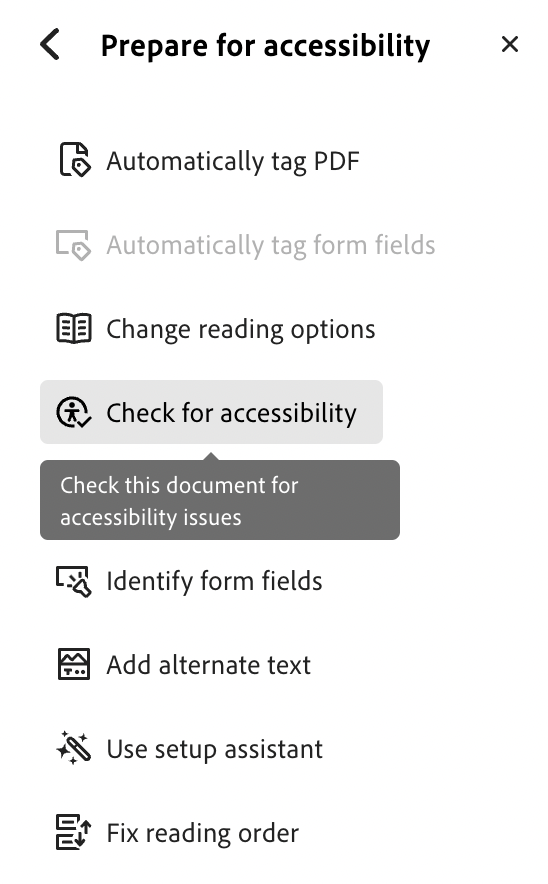
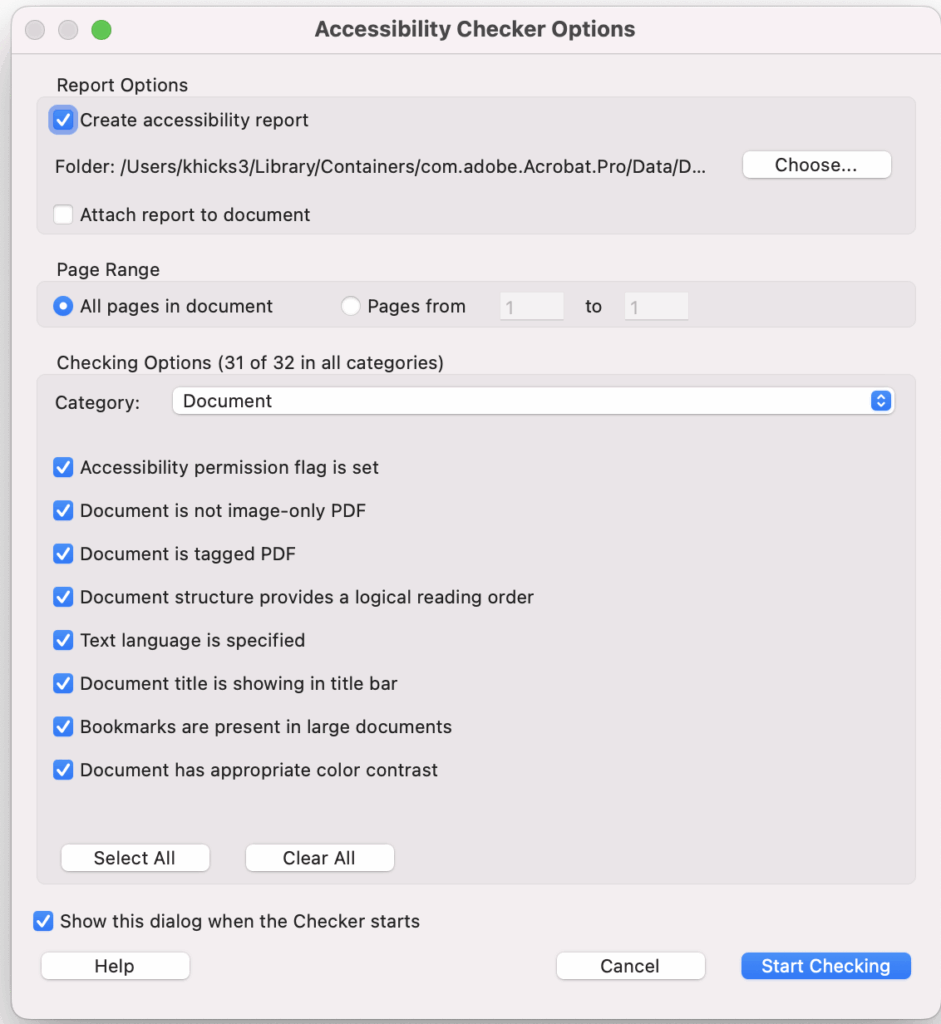
- Accept the default options, click the “Start Checking” button, and then review any “Failed” and “Needs manual check” issues, and fix them before saving and distributing the PDF.
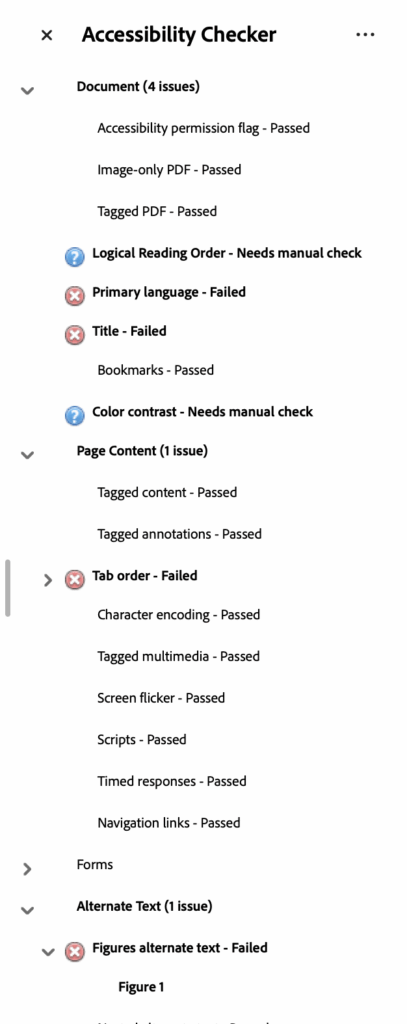
- When you see only Manual Checks left, you are nearly done!
Note:
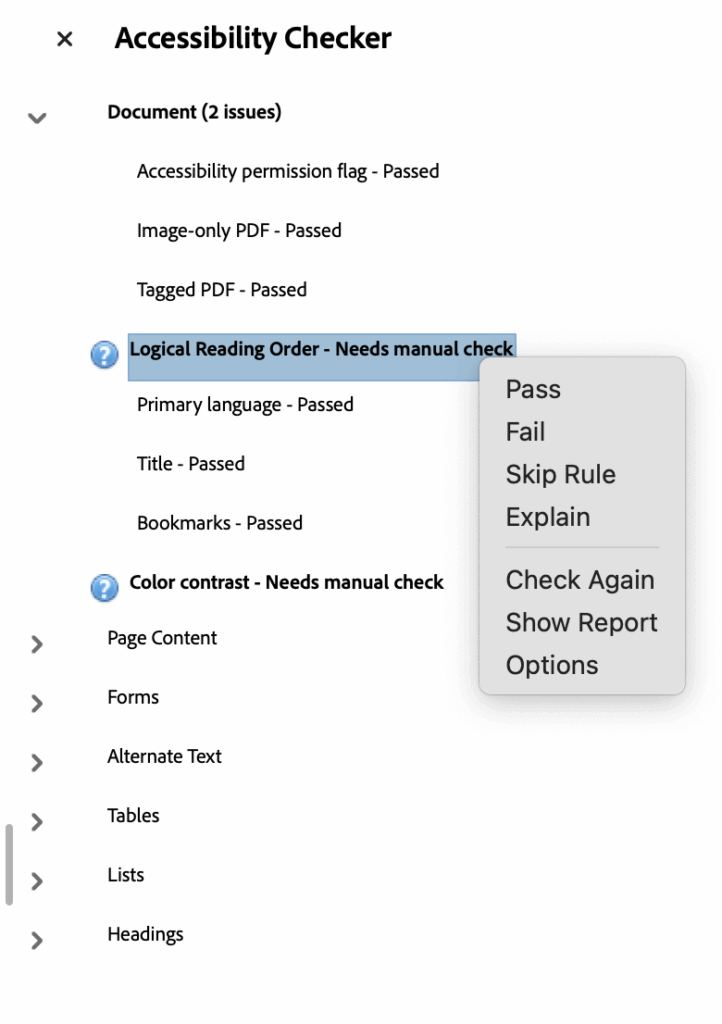
When you do an automated check in Acrobat, you will likely see at least two “Needs manual check” items, Logical Reading Order and Color Contrast.
You are expected to manually ensure that your document has a logical reading order (most PDFs creating as documents in Word, without boxes and sidebars, will be fine), and that there is sufficient color contrast (7:1 ratio) for the text to be readable (black text on a white background is always fine). Right-click on the issue, and choose “Pass” from the drop-down if these items are fine.
If you recheck the document in Acrobat again, after Passing the issues, these issues will be flagged again. You may simply right-click and Pass them again, and then upload your PDF to WordPress.
An example of a complex but accessible PDF.
If you have any questions about PDF accessibility, or have tried these steps and get stuck, Web Services will try to help. Please reach out with any questions or concerns, any time! Remember, as a web editor, it is your responsibility to keep all your content accessible!