

A New Way to Upload PDFs (Or, Better Yet, Don’t!)
We’ve made a significant change to how PDFs work on our WordPress sites. Here’s what’s changed, why, and what it means for your workflow.
The short version: you can no longer upload PDFs directly through the Media Library. This is intentional, and it’s a good thing.
Why PDFs Are a Problem
PDFs are one of the biggest accessibility barriers on the web. A sighted user with a mouse can open a PDF and read it fine. But for someone using a screen reader, a keyboard, or assistive technology, a PDF can be completely unusable — garbled text, no heading structure, missing alt text, no logical reading order.
This isn’t a theoretical concern. Federal accessibility guidelines require that the content we publish is accessible to everyone. The PDF Upload Tool is one of the ways Web Services is ensuring we meet that standard.
What’s Changed
Direct PDF uploads to the WordPress Media Library are now via the PC PDF Upload Tool. If you try to upload a PDF the way you used to — dragging it into the Media Library or using the Add Media button — it won’t work.
We strongly recommend that you don’t use PDFs on your site at all. In most cases, there’s a better option.
What to Do Instead
Before reaching for a PDF, ask yourself: does this actually need to be a PDF? Instead, try these strategies:
- Put the content on a web page. If your PDF contains text, headings, images, and links — that’s perfect web page content. WordPress is built for exactly this. Web pages are accessible by default when built correctly, they’re searchable, they work on every device, and they’re easy to update. No re-uploading a new file every time something changes.
- Link to a Word Doc or Excel Sheet that is stored within SharePoint (portal sites). If you need a document that members of the PC community can reference or download, a shared document is often a better choice. It’s a living document that can be updated in place, and Microsoft’s tools have built-in accessibility features. Please bear in mind that this content will only be available to members of our community — faculty, staff and students.
- Embed content directly into WordPress pages. Tables, charts, lists — all of this can live on your pages. If you’re not sure how to structure something in WordPress, reach out to Web Services. That’s what we’re here for.
The only cases where a PDF might still be necessary are official forms requiring a specific layout, or documents from external sources that must be hosted in their original format.
If You Absolutely Must Use a PDF
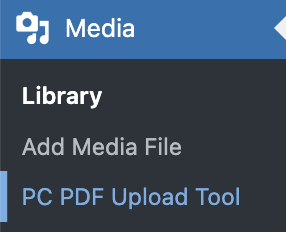
Sometimes a PDF is unavoidable. For those cases, Web Services has built the PC PDF Upload Tool.
When you need to upload a PDF, you’ll use the PC PDF Upload Tool instead of the Media Library. Before you can complete your upload, you’ll be asked to attest that the PDF is fully accessible.
This means you need to have checked the document in Adobe Acrobat’s accessibility checker before uploading. The PDF must have zero errors and zero warnings. Not “mostly accessible.” Not “it looks fine to me.” Zero errors. Zero warnings. (See our PDF Accessibility page for more information.)
The attestation is not a suggestion. It’s a requirement. When you attest that a PDF is accessible, you are putting your name on it.
Uploads Are Tracked
Every PDF upload through the PC PDF Upload Tool is logged. The system records which user uploaded the file, which site it was uploaded to, and the attestation made at the time of upload. This is tracked across the entire network.
This isn’t an issue of surveillance. it’s an issue of accountability. When we say our content is accessible, we need to be able to back that up. If a PDF is later found to have accessibility issues, we need to know who uploaded it and what was attested. This protects you (assuming the PDF you’ve uploaded is accessible), the College, and it creates a clear record of due diligence.
The Big Picture
This is a change in workflow, and we understand that. But the goal is straightforward: our websites need to be usable by everyone who visits them. PDFs have been one of the biggest obstacles to that, and this tool gives us a way to manage them responsibly while encouraging better alternatives.
If you have questions about converting existing PDF content into web pages, or you’re unsure whether something needs to be a PDF, reach out to Web Services. We’re happy to help you find the right approach for your content.